How to Redeem GTA 6 Physical Edition Download Codes on Console
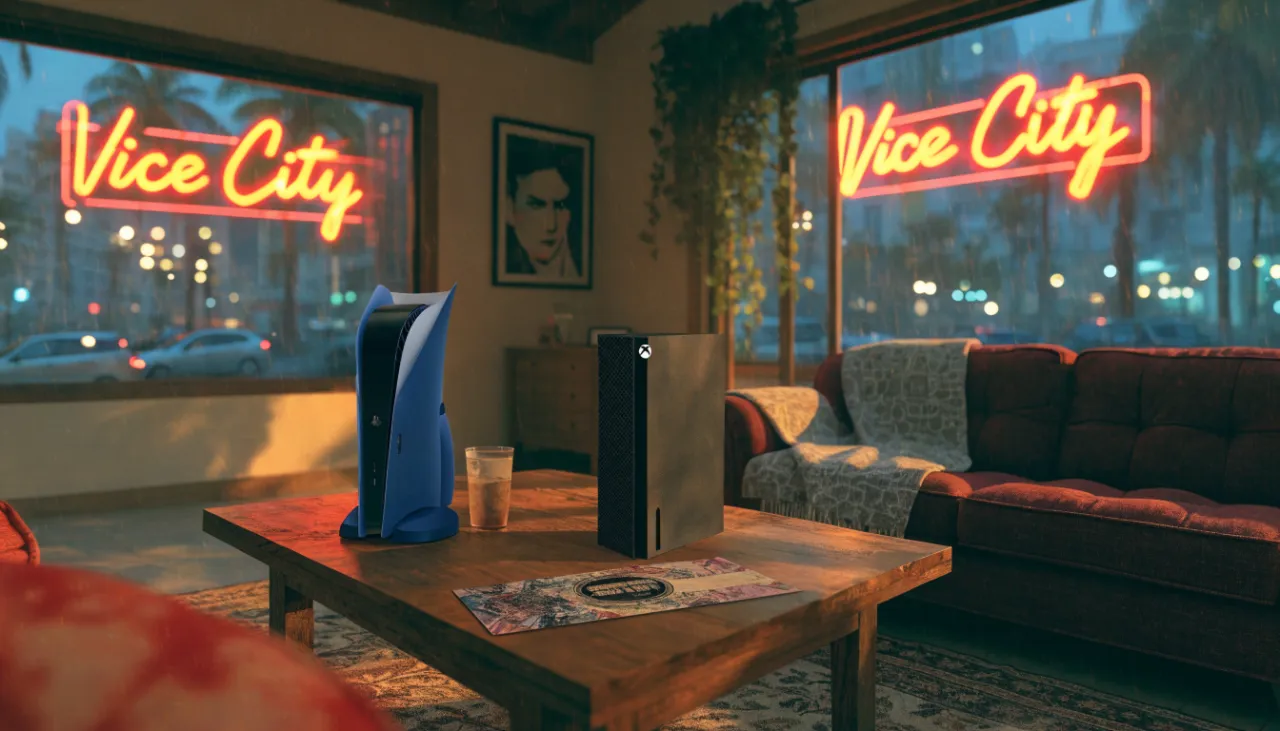
If you picked up the physical edition of Grand Theft Auto VI on November 12, you already know there's no disc inside — just a download code. It's a bit of a shift, but redeeming it is straightforward. I'll walk you through it on both PlayStation 5 and Xbox Series X|S so you can pre-load and be ready to jump into Leonida when the game unlocks on November 19.
Before You Start: What You'll Need
Grab these things before you sit down to redeem:
- Your console — PS5 (standard or Pro) or Xbox Series X|S, connected to the internet.
- The code — it's printed on a voucher inside the box. Keep it safe; it's your game.
- Enough storage space — Rockstar hasn't shared the exact size yet, but plan for a hefty download. Clear some room if your drive is full.
- A payment method (optional) — if you bought the Standard Edition but decide to upgrade to the Ultimate Edition later, you'll need a card or wallet funds. You can also grab a GTA+ subscription if you're into GTA Online.
- Your platform account — signed in and ready, with no region mismatches. The code must match your account's region.
How to Redeem on PlayStation 5
This is the console I'll be playing on with my brother. Here's the step-by-step:
- From the home screen, scroll up to the top menu and select the PlayStation Store icon.
- Scroll down to Redeem Codes (it's near the bottom of the sidebar) and press X.
- Enter the 12-digit code exactly as it appears on the voucher. Watch for confusing characters like 0/O or 1/I. You can use the on-screen keyboard or a connected keyboard.
- Select Continue. The system will check the code and show you what you're getting — the GTA VI Standard or Ultimate Edition.
- Confirm, then choose Download. The game will be added to your library and start downloading. You can pause or let it run in rest mode.
Once downloaded, the game icon will have a countdown timer until November 19. If you pre-ordered digitally, you might already have the pre-load; the physical code works the same way.
How to Redeem on Xbox Series X|S
For my friends on Xbox, the process is just as simple:
- Press the Xbox button to open the guide, then navigate to the Store tab.
- Select Redeem (you'll see it in the sidebar).
- Enter the 25-character code. Again, double-check letters and numbers.
- Hit Next, review the item, and confirm. The game will be added to your account.
- Go to My games & apps, find GTA VI in your library, and select Install. You can manage the download from the queue.
Like on PS5, the title will unlock on release day. If you have a slower connection, starting the download early is a huge help.
Don't Miss the Pre-Order Bonus
Even though you bought a physical box, you're still eligible for the Vintage Vice City Pack if you redeem your code before November 20, 2026. That pack includes a two-tone '55 Vapid Stanier sedan, the Shore Court Garage on Ocean Beach, throwback outfits for Jason and Lucia, and a weapon pattern. It's a nice throwback to Vice City's glory days. If you wait until after launch day, you might miss out, so punch in that code as soon as you open the box.
For a full breakdown of what comes in each edition, check out our GTA 6 price & editions page.
If You Run Into Trouble
- Code not working? Make sure you're entering it on the right store (PS5 vs. PS4, or the correct Xbox region). If it still fails, contact PlayStation Support or Xbox Support with your proof of purchase.
- Not enough space? You can delete other games or move them to an external drive. On Xbox Series X|S, you can also install to an expansion card.
- Pre-load won't start? Check your network connection and try restarting the console. Sometimes the download queues up silently — look in your library or downloads section.
Once you're all set, the hardest part is waiting until November 19. At least you can spend that time reading up on Leonida's locations or planning your first heist with a friend on the couch. See you in Vice City!
Into GTA? Our sister site GTACraft covers GTA 6 and GTA 5 news, guides and GTA 5 roleplay servers (in Russian).
Replies (0)
Log in or create an account to join the discussion.
No comments yet — be the first to roast it.